Choose an image to add text to
or drag and drop a file here
Or try a sample photo
morphed.app · Paid AI tools
Start with a striking image. Add your words here.
Explore a new visual style in Morphed, then return to ImageWand to add the exact text, position and styling you want.Explore a new visual style in Morphed, then return to ImageWand to add the exact text, position and styling you want.
Paid AI tools. Separate account and upload in Morphed.
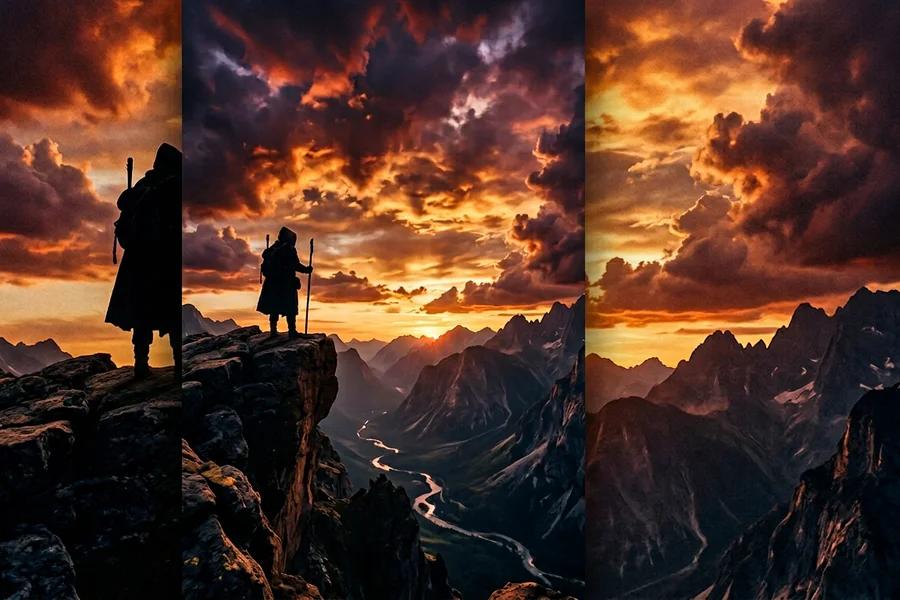
A cinematic visual direction
A sunset, a dramatic silhouette and a sense of scale.
AI-created concept image. Results vary.
See an example
Give a photo a headline
Add a message for a cover image, announcement or social post.
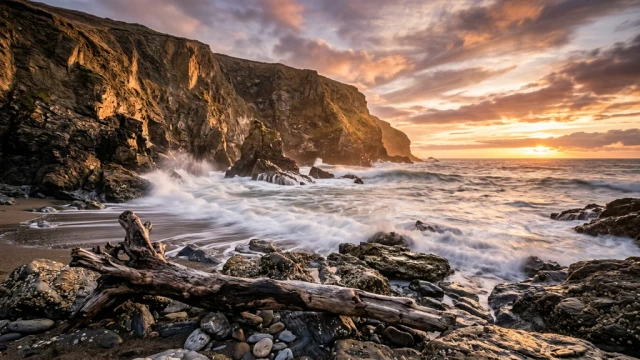
Original sample
640 x 360 px
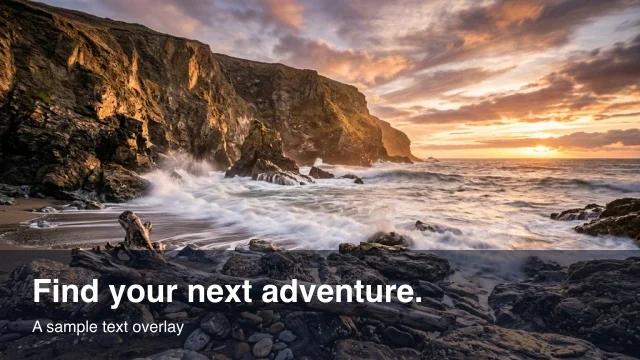
Text added to the photo
640 x 360 px preview
Add text to a photo in five steps
- Choose an image. Pick a photo, screenshot or graphic from your device, or try the sample. A first text layer is added for you.
- Write and style the text. Type in the Text box (Enter starts a new line), then pick the font, weight, size, colour, alignment and any outline, shadow or background box.
- Position it. Drag the text on the preview, use the arrow keys on a selected box, type exact positions, or use the quick-position buttons.
- Add more layers. Select Add text for each extra caption. Reorder, duplicate or remove layers in the Layers list.
- Download. Choose JPG, PNG or WebP and download. The file keeps your image’s original pixel size.
What this tool does
- Adds any number of text layers, each with multi-line text and its own font, weight, italic, size, colour, opacity, alignment and line spacing.
- Adds an optional outline, soft shadow or background box behind each layer, so text stays readable on busy photos.
- Positions text by dragging (mouse or touch), with the arrow keys, by typing exact percentages, or with nine quick-position buttons.
- Downloads PNG, JPG or WebP at your image’s original pixel size, with text drawn at the matching scale. Very large images are capped at about 16 megapixels.
What it does not do
- It does not rotate, curve or warp text, and it does not wrap long lines automatically; press Enter where you want a line break.
- It does not keep editable text in the file. The download is a flat image.
- It does not upload custom font files. Only the fonts listed in the Font menu are available.
- It does not save projects. Closing or reloading the page discards your layers.
Making text easy to read
Contrast matters more than size. Light text on a dark area (or the reverse) reads best; on a busy background, add an outline of about 5–8% of the text size or a semi-transparent background box. Keep captions short, and leave a margin from the edges, since some apps crop or round the corners of images.
For a classic top-and-bottom caption, the meme generator is quicker. To mark photos as yours, use the watermark tool, which is built for repeated, semi-transparent marks.
Related tools
Frequently asked questions
Will the text look the same in the download as in the preview?
Yes. The preview and the download use the same drawing code. Sizes are measured in pixels of your original image, so a 64 px caption is 64 px tall in the full-size file, however small the preview is on screen.
Which fonts can I use?
Inter and Plus Jakarta Sans (the fonts used on this site), plus common system fonts: Arial, Verdana, Trebuchet MS, Georgia, Times New Roman, Courier New and Impact. If a system font is missing on your device, the closest similar font is used, and the preview shows exactly what will be saved.
How is this different from the meme generator and the watermark tool?
The meme generator makes classic top and bottom captions in one fixed style. The watermark tool repeats or places a mark to show ownership. This editor is for free-form text: any number of layers, styled and positioned individually.
Can I edit the text again after downloading?
Not in the downloaded file: the text becomes part of the picture. While the page is open you can keep editing and download again. Reloading the page or choosing a new image starts over.
Are my images uploaded?
No. Your image is opened and edited by your browser on your device. Camera details and location data from the original are not copied into the download.