Choose a picture to crop into a circle
or drag and drop a file here
Or try a sample photo
morphed.app · Paid AI tools
A new creative idea inside your circle frame.
Set your circle composition in ImageWand.Set your circle composition in ImageWand. Try a different scene or style in Morphed, then crop the exported image to the shape you need here.
Paid AI tools. Separate account and upload in Morphed.
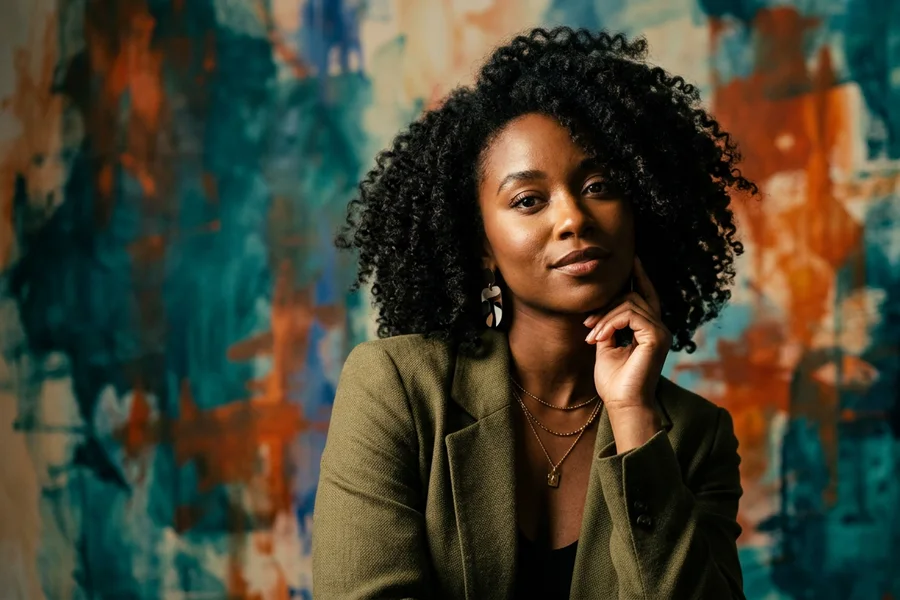
A different creative direction
An expressive portrait against a painted studio wall.
AI-created concept image. Results vary.
See an example
Keep the part that matters
An example of changing the crop while keeping the subject in view.


Original sample
640 x 360 px

Circular crop with transparent corners
360 x 360 px preview
Crop a picture into a circle in four steps
- Choose an image. Pick a photo, logo or product shot from your device, or try the sample. It stays in your browser.
- Frame the circle. Drag the picture, or use the arrow keys, to position it. Zoom with the slider, the + and − buttons, the mouse wheel or a pinch.
- Pick the edge. Keep a crisp edge or choose a soft fade, and add a border ring if you want one.
- Download. Choose a size and PNG or WebP, then download. Everything outside the circle is transparent.
What this tool does
- Cuts a true circle out of your picture and saves it as a square PNG or WebP with fully transparent corners.
- Lets you zoom up to 10× and position the circle by dragging, with the keyboard, or with the position sliders.
- Offers a crisp edge (one-pixel smoothing) or a soft fade, plus an optional solid border ring in any colour.
- Saves at the size you choose, from 16 to 4096 pixels across, and warns you when that enlarges the picture.
What it does not do
- It does not find faces or subjects automatically. You choose the framing.
- It does not remove the background inside the circle. Use the background remover first if you need that.
- It does not save JPG, because JPG cannot store transparent corners.
- It does not add detail: enlarging a small circle beyond its source pixels makes it softer, not sharper.
Round file or round display?
Many profile photo slots look round, but the site crops a square upload into a circle only when it shows it. For those, a square image is what you upload: use the image cropper or a profile preset such as the LinkedIn profile photo resizer, whose circle is only a preview of how the site will display it. This page makes a file that is round itself, which is what you need when you place the picture somewhere that will not crop it for you.
Related tools
Frequently asked questions
Is the area outside the circle really transparent?
Yes. Every pixel whose centre lies outside the circle is saved with zero opacity, and its colour is cleared too, so nothing of the cropped-out picture remains in the corners. Only a one-pixel rim is partly transparent, to keep the edge smooth.
Why is the downloaded file still square?
Image files are always rectangles. A round image is a square file whose corners are transparent, which is why the download is a PNG or WebP: JPG cannot store transparency and would fill the corners with a colour.
Do I need this for a profile picture?
Usually not. Most social sites ask for a square photo and draw the circle themselves when they display it. Use a square crop for those. A round file is useful when you place the picture yourself, for example in slides, documents, email signatures, websites or designs.
What size should I choose?
“Source” matches the detail your circle actually covers, up to 2048 pixels. Larger sizes enlarge the picture and can look soft; the tool warns you when that happens. You can also choose 256 to 2048 pixels or enter a custom size up to 4096.
Are my images uploaded?
No. The crop is drawn by your browser on your device, and the file is saved straight from there. Camera details and location data from the original are not copied into the download.