Choose a photo to redact
or drag and drop a file here
Or try a sample photo
morphed.app · Paid AI tools
Keep sensitive files private. Explore with a separate sample.
Blur Faces and Hide Details in a Photo is the privacy task here.Blur Faces and Hide Details in a Photo is the privacy task here. If you want to try Morphed, use a separate, non-sensitive image for a creative edit. Morphed processes uploads through its own service.
Paid AI tools. Separate account and upload in Morphed.
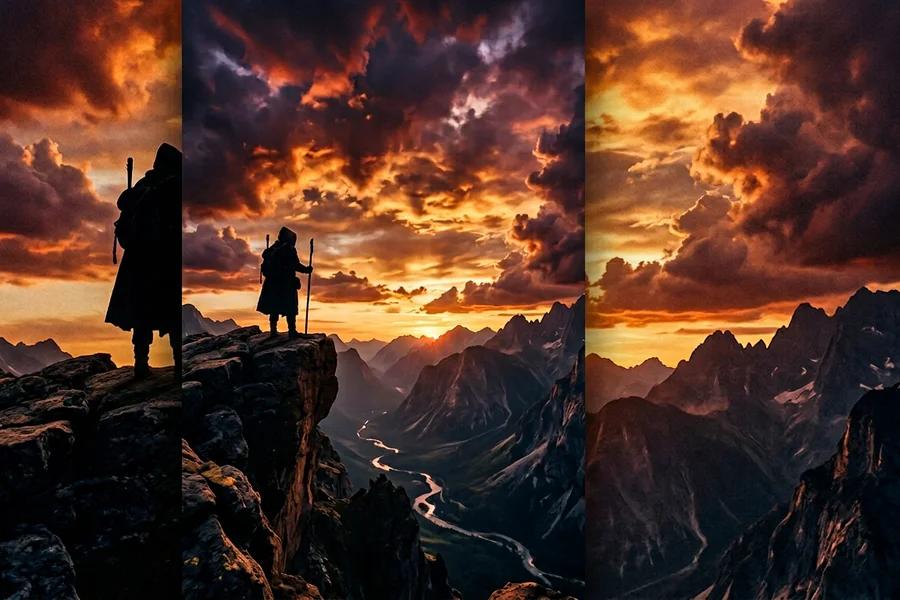
A cinematic visual direction
A sunset, a dramatic silhouette and a sense of scale.
AI-created concept image. Results vary.
See an example
Cover the details you do not want to share
This example obscures a marked area of a sample portrait. Check the entire image before publishing.
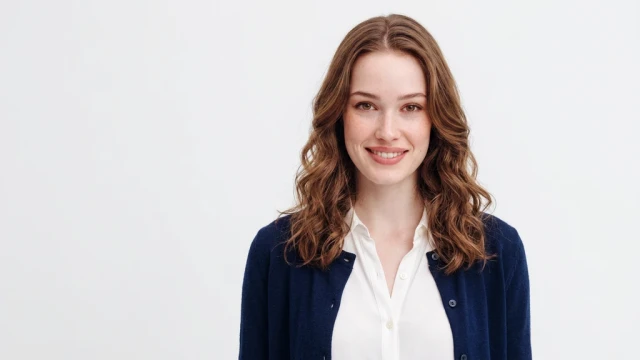
Original sample
640 x 360 px
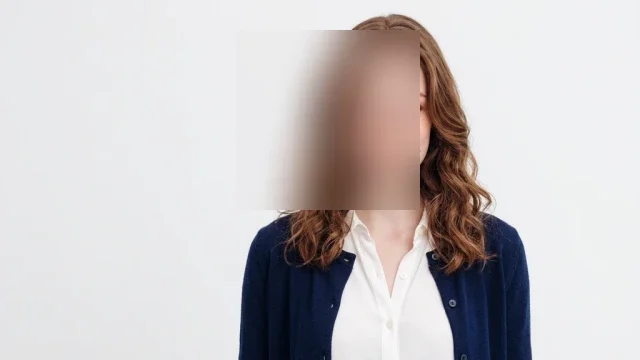
Marked face area blurred
640 x 360 px preview
Hide faces and details in four steps
- Choose a photo. Pick the photo from your device, or try the sample. It is not uploaded.
- Mark each area. Drag across every face, plate or line of text you want hidden. Use Add region and the arrow keys or the position fields if you prefer the keyboard.
- Choose the effect. Pick Pixelate, Blur or Solid, and set the strength. Switch between After and Before to check every area is covered.
- Download. Save as JPG, PNG or WebP. The file is rebuilt from the edited pixels, without the original metadata.
What this tool does
- Lets you mark as many rectangular or oval regions as you need, and move or resize them with a mouse, touch or the keyboard.
- Pixelates, blurs or fills each region. The effect is computed from that region only and written over the original pixels.
- Shows a before/after preview using the same code that produces the download.
- Saves a newly encoded JPG, PNG or WebP at the photo’s full size (very large photos are capped at about 16 megapixels), without the original EXIF, GPS or colour-profile data. Some browsers, including Chrome, tag the new file with their own standard sRGB colour profile.
What it does not do
- It does not detect faces, plates or text. Anything you do not mark is left as it is.
- It cannot make a weak setting safe. Small pixel blocks or light blur can leave a face recognisable.
- It does not edit video or several photos at once.
- It does not change the original file on your device; you get a separate copy.
Getting a reliable result
Cover the whole head, including hair and ears, with a margin around it. Recognisable clothing, tattoos, name badges, reflections and screens can identify someone too. For text, use Solid rather than blur. Before you share, switch to After and look at the photo at full size. Read how ImageWand handles files in the privacy policy.
Want to soften an entire photo rather than hide one part? The blur filter applies a blur to the whole image.
Related tools
Frequently asked questions
Does it find faces automatically?
No. You mark every area yourself, by dragging on the photo or with the keyboard. That keeps you in control, but it also means anything you do not mark stays visible, so check the whole photo before you share it.
Can someone undo the blur or pixelation?
The download contains only the edited pixels; the original detail inside each region is not stored in the file. But weak settings can still leave a face recognisable or text readable. Use large pixel blocks or strong blur, cover the whole area with some margin, and use Solid for anything that must not be read.
Which effect should I use?
Solid fill removes everything and is the safest for documents, number plates and text. Pixelate with large blocks is a common choice for faces. Blur looks softer but needs a strong setting to hide detail.
Is location or camera data removed?
Yes. The download is a newly encoded image, so EXIF data such as GPS location, camera model and date is not copied from the original. Other people or places can still be identified from what remains visible in the picture.
Are my photos uploaded?
No. The photo is opened, edited and saved by your browser on your device.