


Resize, compress and crop all make an image "smaller", but they change different things:
- Resize changes the number of pixels. The whole picture stays, at a lower (or higher) resolution.
- Compress keeps the pixel dimensions and stores the pixels in fewer bytes, by discarding detail you are unlikely to notice.
- Crop cuts away part of the picture. What remains keeps its full resolution.
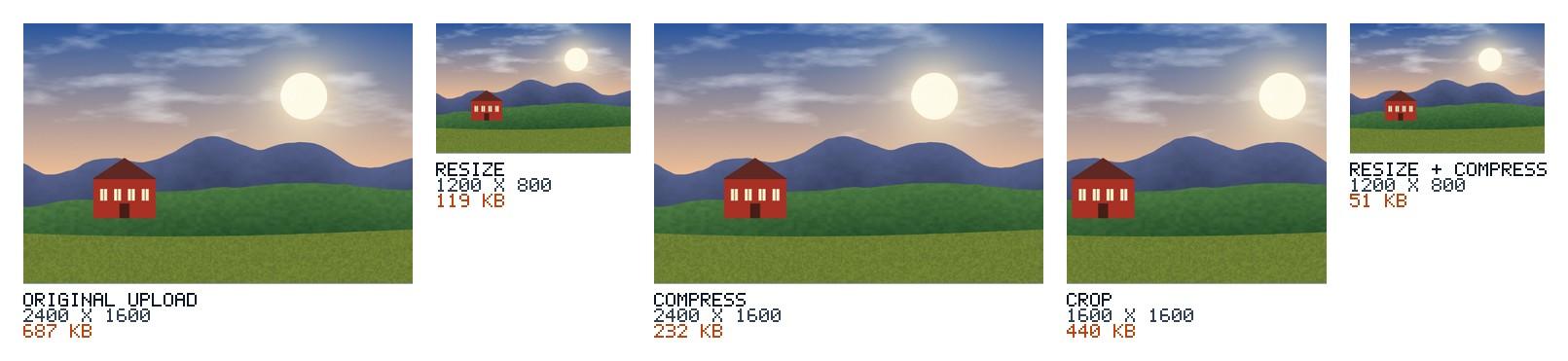
To show the difference with real numbers, we ran one image through each tool and measured the downloads.
The test
The source is an original synthetic landscape, 2400 × 1600 px, drawn by a script for this article (no real photo): sky gradients, textured hills, per-pixel grain like a camera sensor, and a hard-edged building. It was saved as a high-quality JPEG of 687,419 bytes, which is what we uploaded. You can download the source and repeat the test.

Each step used the live tool in Google Chrome 158 on 24 November 2026, with default settings except where noted:
| Task | Tool and settings | Output | Bytes | PSNR | SSIM |
|---|---|---|---|---|---|
| Original upload | — | 2400 × 1600 | 687,419 | 40.21 dB | 0.9396 |
| Resize | Resize: width 1200, keep shape, JPEG at the default quality | 1200 × 800 | 119,473 | 41.05 dB | 0.9729 |
| Compress | Compress: default quality 75, JPG | 2400 × 1600 | 232,263 | 38.10 dB | 0.9040 |
| Crop | Crop: 1:1, full resolution, JPEG at the default quality | 1600 × 1600 | 440,001 | 39.14 dB | 0.9294 |
| Resize, then compress | Resize to 1200 wide, then compress at 75 | 1200 × 800 | 51,062 | 38.97 dB | 0.9618 |
How to read the quality columns. PSNR and SSIM compare each download with a lossless version of the same pixels: the full image, a high-quality 1200 × 800 resize, or the same centred square. They show how much the JPEG encoding changed the pixels, not whether the image is the right size for its job. SSIM is 1.0 for an identical image; PSNR is higher when closer. The original upload scores below 1.0 because it is itself a JPEG.
What the numbers show
- Resizing removed the most bytes while keeping the whole picture. Half the width and half the height is a quarter of the pixels, and the file fell from 687,419 to 119,473 bytes. Its quality score is the highest of the set because fewer, averaged pixels hide the grain.
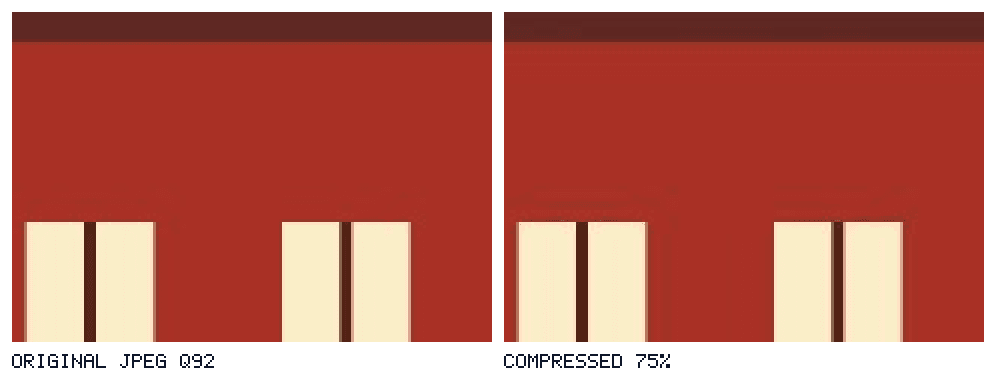
- Compressing kept all 3.84 million pixels and cut the file to 232,263 bytes. The cost is visible only up close: grain and fine texture are smoothed. Below is the same patch of the original and the compressed copy at three times magnification.
- Cropping kept full resolution in the part that remained. The square had 1600 × 1600 = 2.56 million pixels, two thirds of the original, and the file shrank roughly in proportion.
- Combining steps in the right order gave the smallest file: resizing first left fewer pixels for the compressor to store, so the final JPEG was 51,062 bytes.
Which one do you need?
| If you need to… | Use | Why |
|---|---|---|
| Meet exact pixel dimensions, for example 1080 × 1080 | Crop to the shape, then resize | Cropping sets the shape; resizing sets the pixel count without stretching |
| Get under a file-size limit such as 500 KB | Compress, after resizing if the image is larger than it will be shown | Compression targets bytes; resizing first makes it easier |
| Make a big photo load faster on a website | Resize to the largest size it is displayed at, then compress | Pixels nobody sees are the biggest waste |
| Remove a distracting edge or change the shape | Crop | Only cropping removes part of the picture |
| Print at a set size | Crop to the paper ratio, then use a print size preset | The paper shape decides the crop; pixels per inch decide the resize |
| Keep every pixel exactly | None of the lossy steps: save as PNG | Only lossless formats keep pixels unchanged |
The detailed guides cover each step properly: resizing without losing quality, lossless versus lossy compression, and the compression benchmark for choosing a format.
Reproduce it
The source image and every output above are in this article’s folder. The test was run with tests/content/article-assets.mjs in the ImageWand repository, which drives the real tools in Chrome and measures the downloads; the quality metrics are computed by scripts/benchmark/lib/metrics.mjs.